
Manual
i7-Clinic — Comprehensive Operational Manual
Thank you for acquiring the i7-Clinic Framer Template. You have invested in a high-fidelity digital infrastructure designed specifically for the medical sector.
This template is not merely a collection of pages; it is a scalable design system. It utilizes Framer’s advanced CMS (Content Management System), Global Style Variables, and responsive breakpoints to ensure your clinic appears authoritative and trustworthy on every device.
This manual is designed to guide you through every step of the customization process, from initial branding adjustments to the final pre-flight SEO checklist.
Table of Contents
Core Concepts & Architecture
Global Design System (Theming)
CMS Configuration (Data Management)
Component Configuration
Emergency Hotline Bar
Navigation & Footer
Booking Logic
Form Configuration (Contact & Newsletters)
Media & Assets Guidelines
SEO & Launch Readiness
Support
1. Core Concepts & Architecture
The "No-Code" Philosophy
i7-Clinic is built to be edited visually. You do not need to write HTML or CSS. However, the template relies heavily on Components and Instances.
Master Component: The original version of an element (e.g., the Navigation Bar).
Instance: A copy of that component used on a page.
Rule of Thumb: If you want to change the Navigation menu, edit the Master Component (marked in purple), and it will update across all 15+ pages instantly.
Responsive Breakpoints
Your template is pre-optimized for three distinct viewports:
Desktop (Primary): 1200px width and above.
Tablet: Optimized for portrait ipads and smaller laptops.
Mobile: Optimized for iPhone/Android widths (390px).
Important: When making layout changes, always start on the Desktop view. Changes cascade down to smaller screens, but changes made on Mobile do not affect Desktop.
2. Global Design System (Theming)
The visual identity of the i7-Clinic template is controlled centrally via the Assets Panel. This allows you to rebrand the entire site in under 5 minutes.
A. Typography System
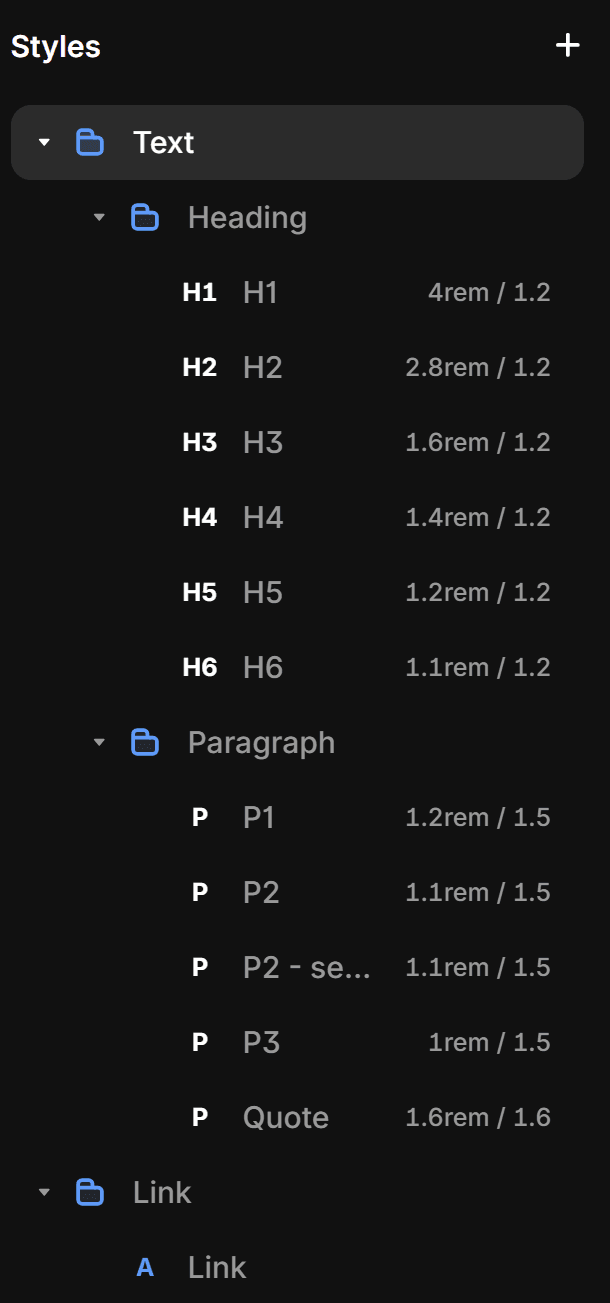
The i7-Clinic template features a meticulously curated font pairing designed to balance modern medical authority with approachable elegance.
The Font Stack:
Headings: Bricolage Grotesque This typeface is used for all primary headlines (H1–H6). It is a contemporary "grotesque" that offers a unique personality—merging historical clinical precision with a modern, high-end aesthetic. It ensures your clinic’s titles look authoritative and cutting-edge.
Body Text: Alan Sans For all paragraph text, descriptions, and CMS content, we use Alan Sans. This font was chosen for its exceptional legibility and neutral tone, ensuring that complex medical information is easy for patients to read on any device.
To Customize Typography:
Navigate to the Assets Panel > Text Styles.
Edit Headings: Click the "Edit" icon next to H1, H2, or H3. You can swap Bricolage Grotesque for another font if your brand requires it, but we recommend keeping the "Grotesque" style to maintain the template’s elite feel.
Edit Body: Click "Edit" next to the Paragraph styles. Changing the font here will update all medical descriptions, blog posts, and doctor bios across the entire site.
Pro Tip: If you change the font family, ensure you check the Line Height and Letter Spacing. This template is pre-optimized for the specific metrics of Bricolage and Alan to ensure perfect readability.
Why this matters for your clinic:
In high-end medical design, "White Space" and "Typography" are the two most important factors for building trust. By using Bricolage Grotesque, you signal that your practice is modern and technologically advanced. By using Alan Sans, you show that you value clarity and patient accessibility.
B. Color System (Light & Dark Mode)
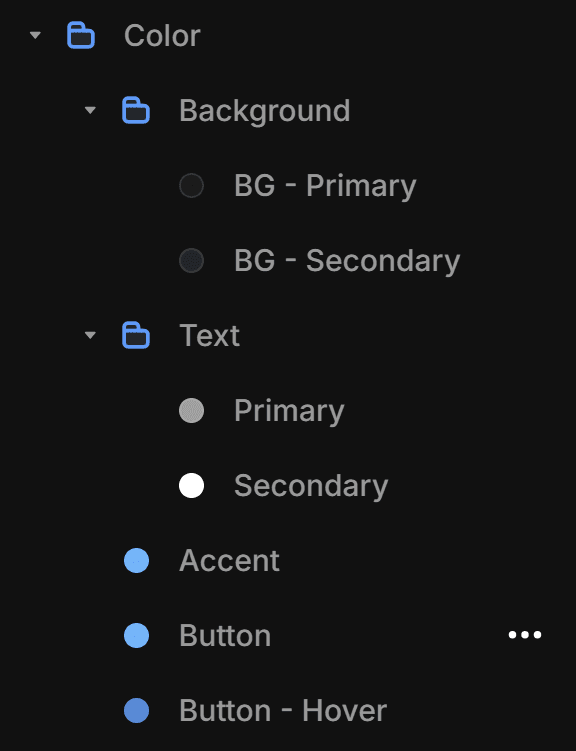
The i7-Clinic template utilizes a professional Semantic Color System. This means colors are named based on their function within the interface rather than their hue, allowing you to rebrand the entire site systematically.
To customize: Navigate to the Assets Panel (left sidebar) > Colors.
Background Folder
BG - Primary: The main canvas color used for the majority of the page sections.
BG - Secondary: A supporting background shade used to create visual contrast in sections, cards, or grouped content.
Text Folder
Primary: A softer, lower-contrast shade used for main body text (Alani Sans) .
Secondary: The high-contrast color used for metadata, captions, and labels to create a clear information hierarchy.
Action & Branding
Accent: Your distinct brand highlight color, used for important headings, links and small UI elements and decorative accents.
Button: The core brand color for all primary Call-to-Action (CTA) elements, such as the "Book Now" buttons.
Button - Hover: The interaction state color. This appears when a user hovers their cursor over a button, providing essential visual feedback.
Dark Mode Configuration
Every color listed above is an Adaptive Variable. This means one single color name contains two different values: one for Light Mode and one for Dark Mode.
Critical Customization Step:
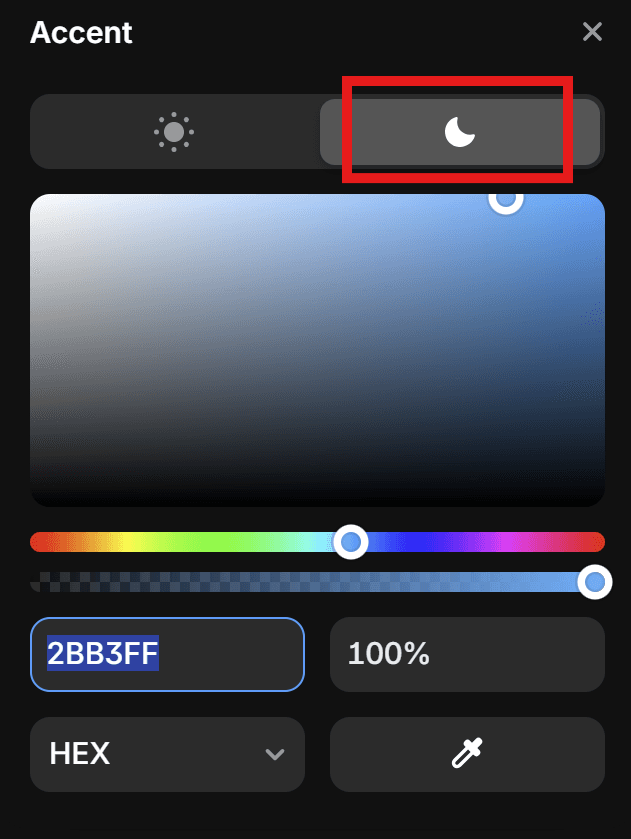
When you click a color to edit it, you will see two tabs at the top of the color picker: Light and Dark.
Always check both: If you change your
Buttoncolor to a very dark navy in Light Mode, you must switch to the Dark tab and ensure theButtoncolor there is bright or light enough to stand out against the darkBG - Primarybackground.Automatic Switching: Once you have set these, your website will automatically switch themes based on the user's system preferences or your site’s theme toggle.
3. CMS Configuration (Data Management)
This is the most powerful feature of your template. Do not build new pages manually for doctors or services. Use the CMS.

Collection A: Team (Doctors & Specialists)
Purpose: Generates individual profile pages for every doctor and populates the "Our Team" grid.
Fields to Populate:
Name: Full name with credentials (e.g., "Dr. Sarah Smith").
Slug: The URL ending (e.g.,
/team/dr-sarah-smith).Role/Specialty: (e.g., "Chief Cardiologist").
Image: A high-resolution portrait.
Short description (Rich Text): Will be displayed on the overview page.
Quote: A personal statement or medical philosophy (e.g., "Your heart is my priority"). This is displayed prominently on the profile to build a personal connection with the patient.
Profile info (Rich Text): Intro to the Bio.
Bio (Rich Text): The full biography, education, and awards.
Collection B: Services (Treatments)
Purpose: Defines the medical solutions you offer.
Fields to Populate:
Title: (e.g., "Cardiac Rehabilitation").
Short Description: A 2-sentence summary shown on the homepage.
Icon/Thumbnail: SVG icon or small photo.
Content: The full explanation of the procedure, preparation, and recovery.
Collection C: Case Studies (Patient Outcomes)
Purpose: Demonstrates clinical excellence and builds trust through "Social Proof." This section allows you to highlight complex procedures, successful recoveries, or before-and-after scenarios.
Fields to Populate:
Title: A descriptive title of the case (e.g., "Minimally Invasive Valve Repair").
Short Description: A short excerpt used on the Case Studies index page to encourage clicking.
Main Image: A relevant medical image, scan, or stock representation of the condition/recovery.
Patient: Name and Age.
Content (Rich Text): Describe the patient's initial condition and the medical complexity, detail the procedure performed by your team and the successful recovery statistics.
Patient Review (Quote): A direct testimonial from the patient describing their experience and gratitude. This adds a critical layer of human connection and trust to the medical facts.
Collection D: Insights (Blog/News)
Purpose: Content marketing and Patient Education.
Strategy: Regular updates here signal to Google that your site is active, improving your SEO ranking.
Fields: Title, Date, Image, and Content.
Collection E Careers (Recruitment)
Purpose: Lists open vacancies.
Workflow: When a position is filled, you do not need to delete the item. Simply set its status to "Draft" in the CMS, and it will vanish from the live site instantly.
4. Component Configuration
The Fixed Emergency Hotline Bar
Located at the very top of the screen (Z-Index: High).
Why it matters: In medical emergencies, users do not scroll. They need a number immediately.
Configuration:
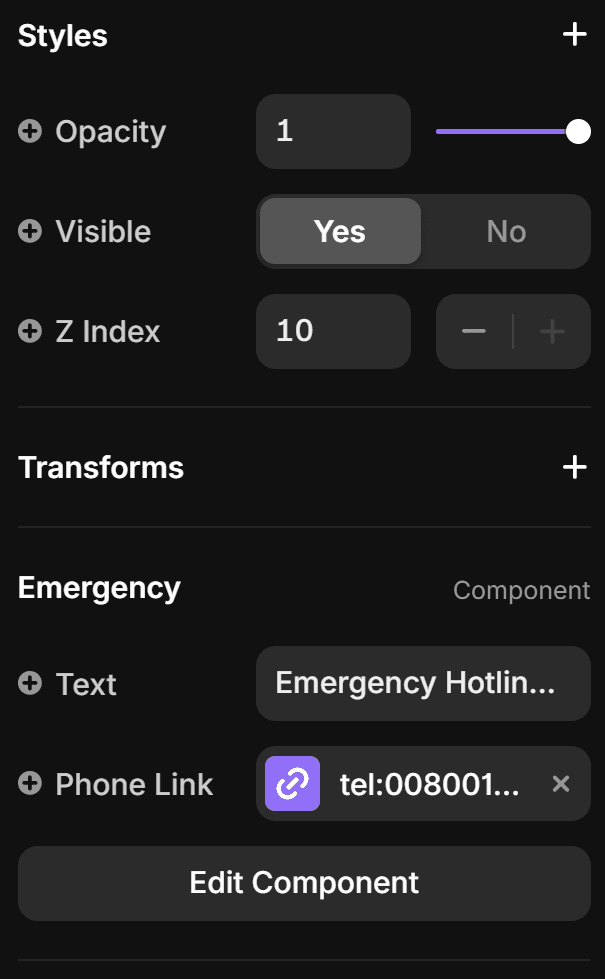
Double-click to enter the Navigation bar than select the top bar component
In the property panel (right side) under Emergency change the text and the phone link.
The Link: Ensure the URL follows the
tel:protocol.Correct:
tel:+15551234567Incorrect:
555-123-4567
Sticky Behavior: This bar is set to
Position: StickyorFixed. Do not change this setting, as it ensures visibility while scrolling.
Navigation & Footer
Navigation: Contains links to "About", "Services", and the "Book Now" CTA.
Mobile Menu: The template uses a "Variant" for the mobile menu (Hamburger icon). To edit the mobile menu links, you must switch the component variant to "Mobile Open" in the canvas to see and edit the hidden links.
Footer: Contains main links and legal links (Privacy Policy, Terms and Conditions). Ensure these link to actual pages before publishing.
Booking Logic (Call to Action)
The "Book Now" buttons appear globally.
i7-Clinic uses Bookla, an API-first scheduling solution, to provide patients with a seamless, real-time booking experience. This replaces traditional "static" forms with a dynamic component that displays actual availability.
Setup Instructions: To integrate your booking system, follow these steps as outlined in this Bookla for Framer Tutorial:
Install the Bookla Plugin: Open the Framer Marketplace or Plugins menu and search for "Bookla".
Configure your Schedule:
Create your company and services (e.g., "General Consultation") in the Bookla dashboard.
Assign resources (Doctors) and set their working hours.
Embed the Component:
Drag the Bookla component onto your "Booking" or "Service" pages.
API Configuration: In the component settings, enter your API Key, Company ID, and Service ID found in your Bookla developer dashboard [10:34].
Customization:
Success Redirection: Set the "Success Route" to your template's internal "Success" page to ensure a professional closing experience after a booking is confirmed [09:28].
Why Bookla?
5. Form Configuration (Contact & Newsletters)
The i7-Clinic template features integrated forms designed for high conversion and data security. These forms are built using Framer’s native form components, allowing for easy setup without external coding.
A. The Patient Contact Form
Located on the "Contact" page, this form is the primary bridge between potential patients and your clinic's administration.
How to set up your receiving email:
Select the Form: Click on the Contact Form component in the canvas.
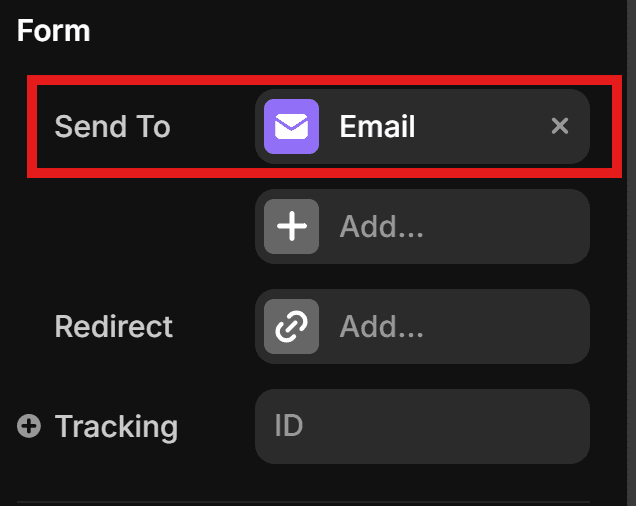
Access Settings: Look at the Properties panel on the right side.
Update the Email Field: Find the field labeled "Email" or "Send to." Delete the placeholder and enter your clinic’s official administration email address (e.g.,
info@yourclinic.com).Test the Connection: After publishing, send a test message through the form to ensure it arrives in your inbox. Check your "Spam" folder if it does not appear immediately.
B. The Newsletter Subscription Form
Strategically placed in the footer and on the "Insights" (Blog) page, this form allows you to build a long-term relationship with your patients through health updates and clinic news.
How to configure the signup list:
Select the Form: Click on the Contact Form component in the canvas.
Access Settings: Look at the Properties panel on the right side.
Update the Email Field: Find the field labeled "Email" or "Send to." Delete the placeholder and enter the email address you want (e.g.,
newsletter@yourclinic.com).Customization: Ensure the Button and Text colors match your branding by checking the Assets panel as previously described.
C. Success & Error States
Both forms include pre-designed "Success" and "Error" messages that match the i7-Clinic aesthetic.
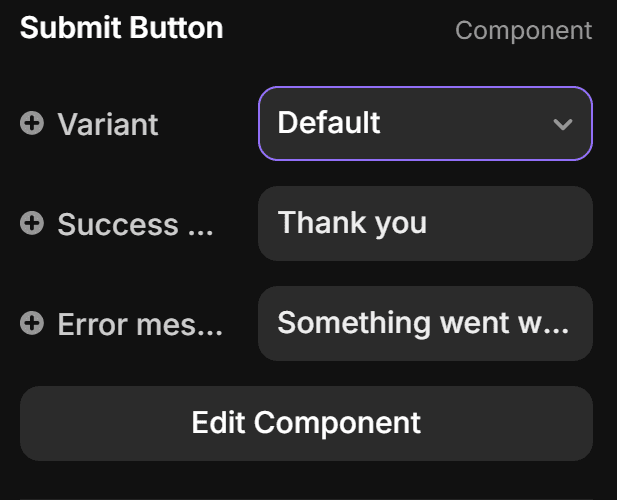
Success Message: A reassuring note (e.g., "Thank you.") that appears immediately after a successful submission.
Error Message: A helpful alert if a field is missed or the connection fails.
Action: You can customize this text by selecting the form than selecting the submit button and changing the messages in the Properties panel.
6. Media & Assets Guidelines
To maintain the "High-End" look of the i7-Clinic template:
Photography: Use authentic, well-lit photography. If using stock photos, choose "Candid" shots rather than staged, overly-smiling models.
Icons: The template uses a consistent SVG icon set. If you add new icons for services, ensure the stroke width (line thickness) matches the existing icons.
Alt Tags: For every image you upload, add a description in the Alt Text field.
Bad: "image_01.jpg"
Good: "Dr. Wagner examining a patient's X-ray results."
Why: This is critical for Accessibility (screen readers) and Google Images SEO.
7. SEO & Launch Readiness
Before clicking "Publish," perform this flight check:
Site Settings: Go to
Settings(Gear Icon) >General.Title: Set a descriptive title (e.g., "i7-Clinic | Premier Cardiology in Berlin").
Description: Write a compelling meta description (max 160 characters).
Social Image (OG Image): Upload a custom image (1200x630px). This is what people see when your link is shared on WhatsApp or LinkedIn.
Favicon: Upload your clinic's logo (32x32px) in
Settings>General.404 Page: Check the
404page in the layers panel. Ensure it provides a way back to the homepage.Domain Connection: Go to
Settings>Domainsto connect your custom URL (e.g.,www.yourclinic.com).
8. Support
We are committed to the quality of this product.
Documentation: You are reading it.
Framer Community: For general Framer questions (e.g., "How do I make an animation?"), the Framer Community is an excellent resource.
Learn Framer in 18 Minutes: A crash course on the fundamentals of Framer, Learn sizing, positioning, layout, breakouts and more in this Framer Crash Course.
Template Support: If you encounter any issues or have questions regarding this template, please reach out.
Support Email: support@i7-templates.com
Thank you for choosing the i7-Clinic Framer Template.
Manual
i7-Clinic — Comprehensive Operational Manual
Thank you for acquiring the i7-Clinic Framer Template. You have invested in a high-fidelity digital infrastructure designed specifically for the medical sector.
This template is not merely a collection of pages; it is a scalable design system. It utilizes Framer’s advanced CMS (Content Management System), Global Style Variables, and responsive breakpoints to ensure your clinic appears authoritative and trustworthy on every device.
This manual is designed to guide you through every step of the customization process, from initial branding adjustments to the final pre-flight SEO checklist.
Table of Contents
Core Concepts & Architecture
Global Design System (Theming)
CMS Configuration (Data Management)
Component Configuration
Emergency Hotline Bar
Navigation & Footer
Booking Logic
Form Configuration (Contact & Newsletters)
Media & Assets Guidelines
SEO & Launch Readiness
Support
1. Core Concepts & Architecture
The "No-Code" Philosophy
i7-Clinic is built to be edited visually. You do not need to write HTML or CSS. However, the template relies heavily on Components and Instances.
Master Component: The original version of an element (e.g., the Navigation Bar).
Instance: A copy of that component used on a page.
Rule of Thumb: If you want to change the Navigation menu, edit the Master Component (marked in purple), and it will update across all 15+ pages instantly.
Responsive Breakpoints
Your template is pre-optimized for three distinct viewports:
Desktop (Primary): 1200px width and above.
Tablet: Optimized for portrait ipads and smaller laptops.
Mobile: Optimized for iPhone/Android widths (390px).
Important: When making layout changes, always start on the Desktop view. Changes cascade down to smaller screens, but changes made on Mobile do not affect Desktop.
2. Global Design System (Theming)
The visual identity of the i7-Clinic template is controlled centrally via the Assets Panel. This allows you to rebrand the entire site in under 5 minutes.
A. Typography System
The i7-Clinic template features a meticulously curated font pairing designed to balance modern medical authority with approachable elegance.
The Font Stack:
Headings: Bricolage Grotesque This typeface is used for all primary headlines (H1–H6). It is a contemporary "grotesque" that offers a unique personality—merging historical clinical precision with a modern, high-end aesthetic. It ensures your clinic’s titles look authoritative and cutting-edge.
Body Text: Alan Sans For all paragraph text, descriptions, and CMS content, we use Alan Sans. This font was chosen for its exceptional legibility and neutral tone, ensuring that complex medical information is easy for patients to read on any device.
To Customize Typography:
Navigate to the Assets Panel > Text Styles.
Edit Headings: Click the "Edit" icon next to H1, H2, or H3. You can swap Bricolage Grotesque for another font if your brand requires it, but we recommend keeping the "Grotesque" style to maintain the template’s elite feel.
Edit Body: Click "Edit" next to the Paragraph styles. Changing the font here will update all medical descriptions, blog posts, and doctor bios across the entire site.
Pro Tip: If you change the font family, ensure you check the Line Height and Letter Spacing. This template is pre-optimized for the specific metrics of Bricolage and Alan to ensure perfect readability.
Why this matters for your clinic:
In high-end medical design, "White Space" and "Typography" are the two most important factors for building trust. By using Bricolage Grotesque, you signal that your practice is modern and technologically advanced. By using Alan Sans, you show that you value clarity and patient accessibility.
B. Color System (Light & Dark Mode)
The i7-Clinic template utilizes a professional Semantic Color System. This means colors are named based on their function within the interface rather than their hue, allowing you to rebrand the entire site systematically.
To customize: Navigate to the Assets Panel (left sidebar) > Colors.
Background Folder
BG - Primary: The main canvas color used for the majority of the page sections.
BG - Secondary: A supporting background shade used to create visual contrast in sections, cards, or grouped content.
Text Folder
Primary: A softer, lower-contrast shade used for main body text (Alani Sans) .
Secondary: The high-contrast color used for metadata, captions, and labels to create a clear information hierarchy.
Action & Branding
Accent: Your distinct brand highlight color, used for important headings, links and small UI elements and decorative accents.
Button: The core brand color for all primary Call-to-Action (CTA) elements, such as the "Book Now" buttons.
Button - Hover: The interaction state color. This appears when a user hovers their cursor over a button, providing essential visual feedback.
Dark Mode Configuration
Every color listed above is an Adaptive Variable. This means one single color name contains two different values: one for Light Mode and one for Dark Mode.
Critical Customization Step:
When you click a color to edit it, you will see two tabs at the top of the color picker: Light and Dark.
Always check both: If you change your
Buttoncolor to a very dark navy in Light Mode, you must switch to the Dark tab and ensure theButtoncolor there is bright or light enough to stand out against the darkBG - Primarybackground.Automatic Switching: Once you have set these, your website will automatically switch themes based on the user's system preferences or your site’s theme toggle.
3. CMS Configuration (Data Management)
This is the most powerful feature of your template. Do not build new pages manually for doctors or services. Use the CMS.
Collection A: Team (Doctors & Specialists)
Purpose: Generates individual profile pages for every doctor and populates the "Our Team" grid.
Fields to Populate:
Name: Full name with credentials (e.g., "Dr. Sarah Smith").
Slug: The URL ending (e.g.,
/team/dr-sarah-smith).Role/Specialty: (e.g., "Chief Cardiologist").
Image: A high-resolution portrait.
Short description (Rich Text): Will be displayed on the overview page.
Quote: A personal statement or medical philosophy (e.g., "Your heart is my priority"). This is displayed prominently on the profile to build a personal connection with the patient.
Profile info (Rich Text): Intro to the Bio.
Bio (Rich Text): The full biography, education, and awards.
Collection B: Services (Treatments)
Purpose: Defines the medical solutions you offer.
Fields to Populate:
Title: (e.g., "Cardiac Rehabilitation").
Short Description: A 2-sentence summary shown on the homepage.
Icon/Thumbnail: SVG icon or small photo.
Content: The full explanation of the procedure, preparation, and recovery.
Collection C: Case Studies (Patient Outcomes)
Purpose: Demonstrates clinical excellence and builds trust through "Social Proof." This section allows you to highlight complex procedures, successful recoveries, or before-and-after scenarios.
Fields to Populate:
Title: A descriptive title of the case (e.g., "Minimally Invasive Valve Repair").
Short Description: A short excerpt used on the Case Studies index page to encourage clicking.
Main Image: A relevant medical image, scan, or stock representation of the condition/recovery.
Patient: Name and Age.
Content (Rich Text): Describe the patient's initial condition and the medical complexity, detail the procedure performed by your team and the successful recovery statistics.
Patient Review (Quote): A direct testimonial from the patient describing their experience and gratitude. This adds a critical layer of human connection and trust to the medical facts.
Collection D: Insights (Blog/News)
Purpose: Content marketing and Patient Education.
Strategy: Regular updates here signal to Google that your site is active, improving your SEO ranking.
Fields: Title, Date, Image, and Content.
Collection E Careers (Recruitment)
Purpose: Lists open vacancies.
Workflow: When a position is filled, you do not need to delete the item. Simply set its status to "Draft" in the CMS, and it will vanish from the live site instantly.
4. Component Configuration
The Fixed Emergency Hotline Bar
Located at the very top of the screen (Z-Index: High).
Why it matters: In medical emergencies, users do not scroll. They need a number immediately.
Configuration:
Double-click to enter the Navigation bar than select the top bar component
In the property panel (right side) under Emergency change the text and the phone link.
The Link: Ensure the URL follows the
tel:protocol.Correct:
tel:+15551234567Incorrect:
555-123-4567
Sticky Behavior: This bar is set to
Position: StickyorFixed. Do not change this setting, as it ensures visibility while scrolling.
Navigation & Footer
Navigation: Contains links to "About", "Services", and the "Book Now" CTA.
Mobile Menu: The template uses a "Variant" for the mobile menu (Hamburger icon). To edit the mobile menu links, you must switch the component variant to "Mobile Open" in the canvas to see and edit the hidden links.
Footer: Contains main links and legal links (Privacy Policy, Terms and Conditions). Ensure these link to actual pages before publishing.
Booking Logic (Call to Action)
The "Book Now" buttons appear globally.
i7-Clinic uses Bookla, an API-first scheduling solution, to provide patients with a seamless, real-time booking experience. This replaces traditional "static" forms with a dynamic component that displays actual availability.
Setup Instructions: To integrate your booking system, follow these steps as outlined in this Bookla for Framer Tutorial:
Install the Bookla Plugin: Open the Framer Marketplace or Plugins menu and search for "Bookla".
Configure your Schedule:
Create your company and services (e.g., "General Consultation") in the Bookla dashboard.
Assign resources (Doctors) and set their working hours.
Embed the Component:
Drag the Bookla component onto your "Booking" or "Service" pages.
API Configuration: In the component settings, enter your API Key, Company ID, and Service ID found in your Bookla developer dashboard [10:34].
Customization:
Success Redirection: Set the "Success Route" to your template's internal "Success" page to ensure a professional closing experience after a booking is confirmed [09:28].
Why Bookla?
5. Form Configuration (Contact & Newsletters)
The i7-Clinic template features integrated forms designed for high conversion and data security. These forms are built using Framer’s native form components, allowing for easy setup without external coding.
A. The Patient Contact Form
Located on the "Contact" page, this form is the primary bridge between potential patients and your clinic's administration.
How to set up your receiving email:
Select the Form: Click on the Contact Form component in the canvas.
Access Settings: Look at the Properties panel on the right side.
Update the Email Field: Find the field labeled "Email" or "Send to." Delete the placeholder and enter your clinic’s official administration email address (e.g.,
info@yourclinic.com).Test the Connection: After publishing, send a test message through the form to ensure it arrives in your inbox. Check your "Spam" folder if it does not appear immediately.
B. The Newsletter Subscription Form
Strategically placed in the footer and on the "Insights" (Blog) page, this form allows you to build a long-term relationship with your patients through health updates and clinic news.
How to configure the signup list:
Select the Form: Click on the Contact Form component in the canvas.
Access Settings: Look at the Properties panel on the right side.
Update the Email Field: Find the field labeled "Email" or "Send to." Delete the placeholder and enter the email address you want (e.g.,
newsletter@yourclinic.com).Customization: Ensure the Button and Text colors match your branding by checking the Assets panel as previously described.
C. Success & Error States
Both forms include pre-designed "Success" and "Error" messages that match the i7-Clinic aesthetic.
Success Message: A reassuring note (e.g., "Thank you.") that appears immediately after a successful submission.
Error Message: A helpful alert if a field is missed or the connection fails.
Action: You can customize this text by selecting the form than selecting the submit button and changing the messages in the Properties panel.
6. Media & Assets Guidelines
To maintain the "High-End" look of the i7-Clinic template:
Photography: Use authentic, well-lit photography. If using stock photos, choose "Candid" shots rather than staged, overly-smiling models.
Icons: The template uses a consistent SVG icon set. If you add new icons for services, ensure the stroke width (line thickness) matches the existing icons.
Alt Tags: For every image you upload, add a description in the Alt Text field.
Bad: "image_01.jpg"
Good: "Dr. Wagner examining a patient's X-ray results."
Why: This is critical for Accessibility (screen readers) and Google Images SEO.
7. SEO & Launch Readiness
Before clicking "Publish," perform this flight check:
Site Settings: Go to
Settings(Gear Icon) >General.Title: Set a descriptive title (e.g., "i7-Clinic | Premier Cardiology in Berlin").
Description: Write a compelling meta description (max 160 characters).
Social Image (OG Image): Upload a custom image (1200x630px). This is what people see when your link is shared on WhatsApp or LinkedIn.
Favicon: Upload your clinic's logo (32x32px) in
Settings>General.404 Page: Check the
404page in the layers panel. Ensure it provides a way back to the homepage.Domain Connection: Go to
Settings>Domainsto connect your custom URL (e.g.,www.yourclinic.com).
8. Support
We are committed to the quality of this product.
Documentation: You are reading it.
Framer Community: For general Framer questions (e.g., "How do I make an animation?"), the Framer Community is an excellent resource.
Learn Framer in 18 Minutes: A crash course on the fundamentals of Framer, Learn sizing, positioning, layout, breakouts and more in this Framer Crash Course.
Template Support: If you encounter any issues or have questions regarding this template, please reach out.
Support Email: support@i7-templates.com
Thank you for choosing the i7-Clinic Framer Template.
Manual
i7-Clinic — Comprehensive Operational Manual
Thank you for acquiring the i7-Clinic Framer Template. You have invested in a high-fidelity digital infrastructure designed specifically for the medical sector.
This template is not merely a collection of pages; it is a scalable design system. It utilizes Framer’s advanced CMS (Content Management System), Global Style Variables, and responsive breakpoints to ensure your clinic appears authoritative and trustworthy on every device.
This manual is designed to guide you through every step of the customization process, from initial branding adjustments to the final pre-flight SEO checklist.
Table of Contents
Core Concepts & Architecture
Global Design System (Theming)
CMS Configuration (Data Management)
Component Configuration
Emergency Hotline Bar
Navigation & Footer
Booking Logic
Form Configuration (Contact & Newsletters)
Media & Assets Guidelines
SEO & Launch Readiness
Support
1. Core Concepts & Architecture
The "No-Code" Philosophy
i7-Clinic is built to be edited visually. You do not need to write HTML or CSS. However, the template relies heavily on Components and Instances.
Master Component: The original version of an element (e.g., the Navigation Bar).
Instance: A copy of that component used on a page.
Rule of Thumb: If you want to change the Navigation menu, edit the Master Component (marked in purple), and it will update across all 15+ pages instantly.
Responsive Breakpoints
Your template is pre-optimized for three distinct viewports:
Desktop (Primary): 1200px width and above.
Tablet: Optimized for portrait ipads and smaller laptops.
Mobile: Optimized for iPhone/Android widths (390px).
Important: When making layout changes, always start on the Desktop view. Changes cascade down to smaller screens, but changes made on Mobile do not affect Desktop.
2. Global Design System (Theming)
The visual identity of the i7-Clinic template is controlled centrally via the Assets Panel. This allows you to rebrand the entire site in under 5 minutes.
A. Typography System
The i7-Clinic template features a meticulously curated font pairing designed to balance modern medical authority with approachable elegance.
The Font Stack:
Headings: Bricolage Grotesque This typeface is used for all primary headlines (H1–H6). It is a contemporary "grotesque" that offers a unique personality—merging historical clinical precision with a modern, high-end aesthetic. It ensures your clinic’s titles look authoritative and cutting-edge.
Body Text: Alan Sans For all paragraph text, descriptions, and CMS content, we use Alan Sans. This font was chosen for its exceptional legibility and neutral tone, ensuring that complex medical information is easy for patients to read on any device.
To Customize Typography:
Navigate to the Assets Panel > Text Styles.
Edit Headings: Click the "Edit" icon next to H1, H2, or H3. You can swap Bricolage Grotesque for another font if your brand requires it, but we recommend keeping the "Grotesque" style to maintain the template’s elite feel.
Edit Body: Click "Edit" next to the Paragraph styles. Changing the font here will update all medical descriptions, blog posts, and doctor bios across the entire site.
Pro Tip: If you change the font family, ensure you check the Line Height and Letter Spacing. This template is pre-optimized for the specific metrics of Bricolage and Alan to ensure perfect readability.
Why this matters for your clinic:
In high-end medical design, "White Space" and "Typography" are the two most important factors for building trust. By using Bricolage Grotesque, you signal that your practice is modern and technologically advanced. By using Alan Sans, you show that you value clarity and patient accessibility.
B. Color System (Light & Dark Mode)
The i7-Clinic template utilizes a professional Semantic Color System. This means colors are named based on their function within the interface rather than their hue, allowing you to rebrand the entire site systematically.
To customize: Navigate to the Assets Panel (left sidebar) > Colors.
Background Folder
BG - Primary: The main canvas color used for the majority of the page sections.
BG - Secondary: A supporting background shade used to create visual contrast in sections, cards, or grouped content.
Text Folder
Primary: A softer, lower-contrast shade used for main body text (Alani Sans) .
Secondary: The high-contrast color used for metadata, captions, and labels to create a clear information hierarchy.
Action & Branding
Accent: Your distinct brand highlight color, used for important headings, links and small UI elements and decorative accents.
Button: The core brand color for all primary Call-to-Action (CTA) elements, such as the "Book Now" buttons.
Button - Hover: The interaction state color. This appears when a user hovers their cursor over a button, providing essential visual feedback.
Dark Mode Configuration
Every color listed above is an Adaptive Variable. This means one single color name contains two different values: one for Light Mode and one for Dark Mode.
Critical Customization Step:
When you click a color to edit it, you will see two tabs at the top of the color picker: Light and Dark.
Always check both: If you change your
Buttoncolor to a very dark navy in Light Mode, you must switch to the Dark tab and ensure theButtoncolor there is bright or light enough to stand out against the darkBG - Primarybackground.Automatic Switching: Once you have set these, your website will automatically switch themes based on the user's system preferences or your site’s theme toggle.
3. CMS Configuration (Data Management)
This is the most powerful feature of your template. Do not build new pages manually for doctors or services. Use the CMS.
Collection A: Team (Doctors & Specialists)
Purpose: Generates individual profile pages for every doctor and populates the "Our Team" grid.
Fields to Populate:
Name: Full name with credentials (e.g., "Dr. Sarah Smith").
Slug: The URL ending (e.g.,
/team/dr-sarah-smith).Role/Specialty: (e.g., "Chief Cardiologist").
Image: A high-resolution portrait.
Short description (Rich Text): Will be displayed on the overview page.
Quote: A personal statement or medical philosophy (e.g., "Your heart is my priority"). This is displayed prominently on the profile to build a personal connection with the patient.
Profile info (Rich Text): Intro to the Bio.
Bio (Rich Text): The full biography, education, and awards.
Collection B: Services (Treatments)
Purpose: Defines the medical solutions you offer.
Fields to Populate:
Title: (e.g., "Cardiac Rehabilitation").
Short Description: A 2-sentence summary shown on the homepage.
Icon/Thumbnail: SVG icon or small photo.
Content: The full explanation of the procedure, preparation, and recovery.
Collection C: Case Studies (Patient Outcomes)
Purpose: Demonstrates clinical excellence and builds trust through "Social Proof." This section allows you to highlight complex procedures, successful recoveries, or before-and-after scenarios.
Fields to Populate:
Title: A descriptive title of the case (e.g., "Minimally Invasive Valve Repair").
Short Description: A short excerpt used on the Case Studies index page to encourage clicking.
Main Image: A relevant medical image, scan, or stock representation of the condition/recovery.
Patient: Name and Age.
Content (Rich Text): Describe the patient's initial condition and the medical complexity, detail the procedure performed by your team and the successful recovery statistics.
Patient Review (Quote): A direct testimonial from the patient describing their experience and gratitude. This adds a critical layer of human connection and trust to the medical facts.
Collection D: Insights (Blog/News)
Purpose: Content marketing and Patient Education.
Strategy: Regular updates here signal to Google that your site is active, improving your SEO ranking.
Fields: Title, Date, Image, and Content.
Collection E Careers (Recruitment)
Purpose: Lists open vacancies.
Workflow: When a position is filled, you do not need to delete the item. Simply set its status to "Draft" in the CMS, and it will vanish from the live site instantly.
4. Component Configuration
The Fixed Emergency Hotline Bar
Located at the very top of the screen (Z-Index: High).
Why it matters: In medical emergencies, users do not scroll. They need a number immediately.
Configuration:
Double-click to enter the Navigation bar than select the top bar component
In the property panel (right side) under Emergency change the text and the phone link.
The Link: Ensure the URL follows the
tel:protocol.Correct:
tel:+15551234567Incorrect:
555-123-4567
Sticky Behavior: This bar is set to
Position: StickyorFixed. Do not change this setting, as it ensures visibility while scrolling.
Navigation & Footer
Navigation: Contains links to "About", "Services", and the "Book Now" CTA.
Mobile Menu: The template uses a "Variant" for the mobile menu (Hamburger icon). To edit the mobile menu links, you must switch the component variant to "Mobile Open" in the canvas to see and edit the hidden links.
Footer: Contains main links and legal links (Privacy Policy, Terms and Conditions). Ensure these link to actual pages before publishing.
Booking Logic (Call to Action)
The "Book Now" buttons appear globally.
i7-Clinic uses Bookla, an API-first scheduling solution, to provide patients with a seamless, real-time booking experience. This replaces traditional "static" forms with a dynamic component that displays actual availability.
Setup Instructions: To integrate your booking system, follow these steps as outlined in this Bookla for Framer Tutorial:
Install the Bookla Plugin: Open the Framer Marketplace or Plugins menu and search for "Bookla".
Configure your Schedule:
Create your company and services (e.g., "General Consultation") in the Bookla dashboard.
Assign resources (Doctors) and set their working hours.
Embed the Component:
Drag the Bookla component onto your "Booking" or "Service" pages.
API Configuration: In the component settings, enter your API Key, Company ID, and Service ID found in your Bookla developer dashboard [10:34].
Customization:
Success Redirection: Set the "Success Route" to your template's internal "Success" page to ensure a professional closing experience after a booking is confirmed [09:28].
Why Bookla?
5. Form Configuration (Contact & Newsletters)
The i7-Clinic template features integrated forms designed for high conversion and data security. These forms are built using Framer’s native form components, allowing for easy setup without external coding.
A. The Patient Contact Form
Located on the "Contact" page, this form is the primary bridge between potential patients and your clinic's administration.
How to set up your receiving email:
Select the Form: Click on the Contact Form component in the canvas.
Access Settings: Look at the Properties panel on the right side.
Update the Email Field: Find the field labeled "Email" or "Send to." Delete the placeholder and enter your clinic’s official administration email address (e.g.,
info@yourclinic.com).Test the Connection: After publishing, send a test message through the form to ensure it arrives in your inbox. Check your "Spam" folder if it does not appear immediately.
B. The Newsletter Subscription Form
Strategically placed in the footer and on the "Insights" (Blog) page, this form allows you to build a long-term relationship with your patients through health updates and clinic news.
How to configure the signup list:
Select the Form: Click on the Contact Form component in the canvas.
Access Settings: Look at the Properties panel on the right side.
Update the Email Field: Find the field labeled "Email" or "Send to." Delete the placeholder and enter the email address you want (e.g.,
newsletter@yourclinic.com).Customization: Ensure the Button and Text colors match your branding by checking the Assets panel as previously described.
C. Success & Error States
Both forms include pre-designed "Success" and "Error" messages that match the i7-Clinic aesthetic.
Success Message: A reassuring note (e.g., "Thank you.") that appears immediately after a successful submission.
Error Message: A helpful alert if a field is missed or the connection fails.
Action: You can customize this text by selecting the form than selecting the submit button and changing the messages in the Properties panel.
6. Media & Assets Guidelines
To maintain the "High-End" look of the i7-Clinic template:
Photography: Use authentic, well-lit photography. If using stock photos, choose "Candid" shots rather than staged, overly-smiling models.
Icons: The template uses a consistent SVG icon set. If you add new icons for services, ensure the stroke width (line thickness) matches the existing icons.
Alt Tags: For every image you upload, add a description in the Alt Text field.
Bad: "image_01.jpg"
Good: "Dr. Wagner examining a patient's X-ray results."
Why: This is critical for Accessibility (screen readers) and Google Images SEO.
7. SEO & Launch Readiness
Before clicking "Publish," perform this flight check:
Site Settings: Go to
Settings(Gear Icon) >General.Title: Set a descriptive title (e.g., "i7-Clinic | Premier Cardiology in Berlin").
Description: Write a compelling meta description (max 160 characters).
Social Image (OG Image): Upload a custom image (1200x630px). This is what people see when your link is shared on WhatsApp or LinkedIn.
Favicon: Upload your clinic's logo (32x32px) in
Settings>General.404 Page: Check the
404page in the layers panel. Ensure it provides a way back to the homepage.Domain Connection: Go to
Settings>Domainsto connect your custom URL (e.g.,www.yourclinic.com).
8. Support
We are committed to the quality of this product.
Documentation: You are reading it.
Framer Community: For general Framer questions (e.g., "How do I make an animation?"), the Framer Community is an excellent resource.
Learn Framer in 18 Minutes: A crash course on the fundamentals of Framer, Learn sizing, positioning, layout, breakouts and more in this Framer Crash Course.
Template Support: If you encounter any issues or have questions regarding this template, please reach out.
Support Email: support@i7-templates.com
Thank you for choosing the i7-Clinic Framer Template.